Alert Explorer
Browse, triage, and escalate security alerts from all connected sources.
/alerts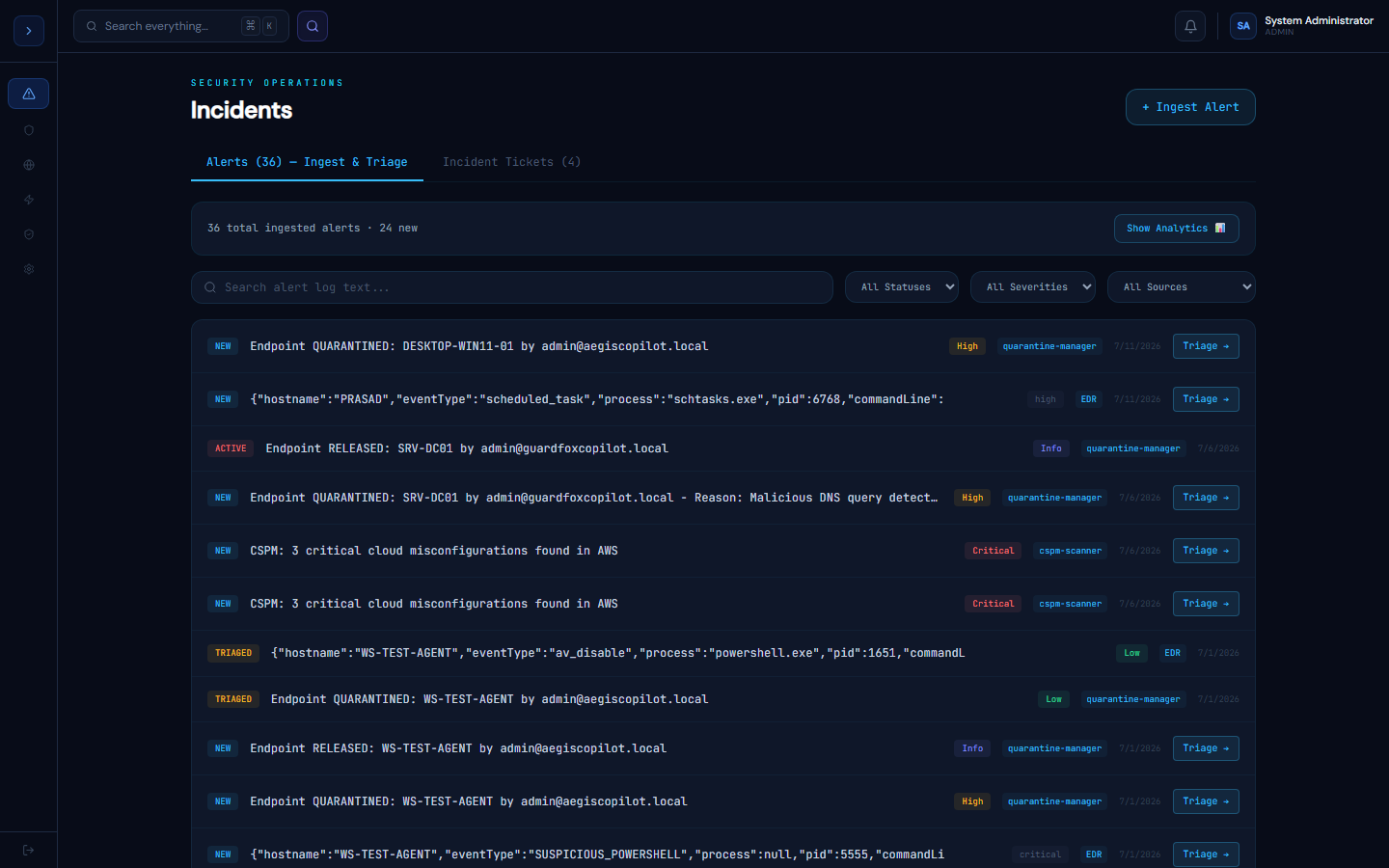
How alerts are created
OverviewHow Alerts Are Created
Alerts in GuardFox Security Systems come from three sources:
- SIEM correlation rules — when ingested events match a configured rule pattern
- EDR agent detections — process injection, ransomware patterns, credential access, LOLBin execution
- Manual creation — analysts can create alerts directly from the explorer
Alert lifecycle
New → Triaged → Investigating → Resolved / ClosedAlert fields
Every alert stores: raw, source, tags, parsed, severity, status. Note: there is no title or description field — the alert message is in raw and the AI analysis goes in parsed.
Triaging alerts
How to useTriaging Alerts
Keyboard shortcuts
- T — mark as triaged
- I — mark as investigating
- C — close alert
- E — escalate to ticket
Bulk actions
Select multiple alerts with the checkbox column, then use the bulk action bar to assign, close, or escalate as a group.
AI Auto-Triage
When enabled (Automation → AI Auto-Triage), new Critical/High alerts are automatically:
- Sent to your configured AI model (Gemini, GPT-4o, Claude, or Ollama)
- Given a threat score (0–100), category, MITRE technique, and recommended action
- Assigned to the configured analyst role
- Linked to an auto-created ticket
Configure the minimum severity, AI model, and prompt in AI Auto-Triage → Configuration.
Escalating to a ticket
Click Create Ticket on any alert to open a pre-filled incident ticket. The alert is automatically linked so you can see it in the ticket's Linked Alerts tab.