AI Auto-Triage
Automatically analyse and prioritise alerts using AI. Configures AI model, severity threshold, auto-ticket creation, and prompt.
/ai-triage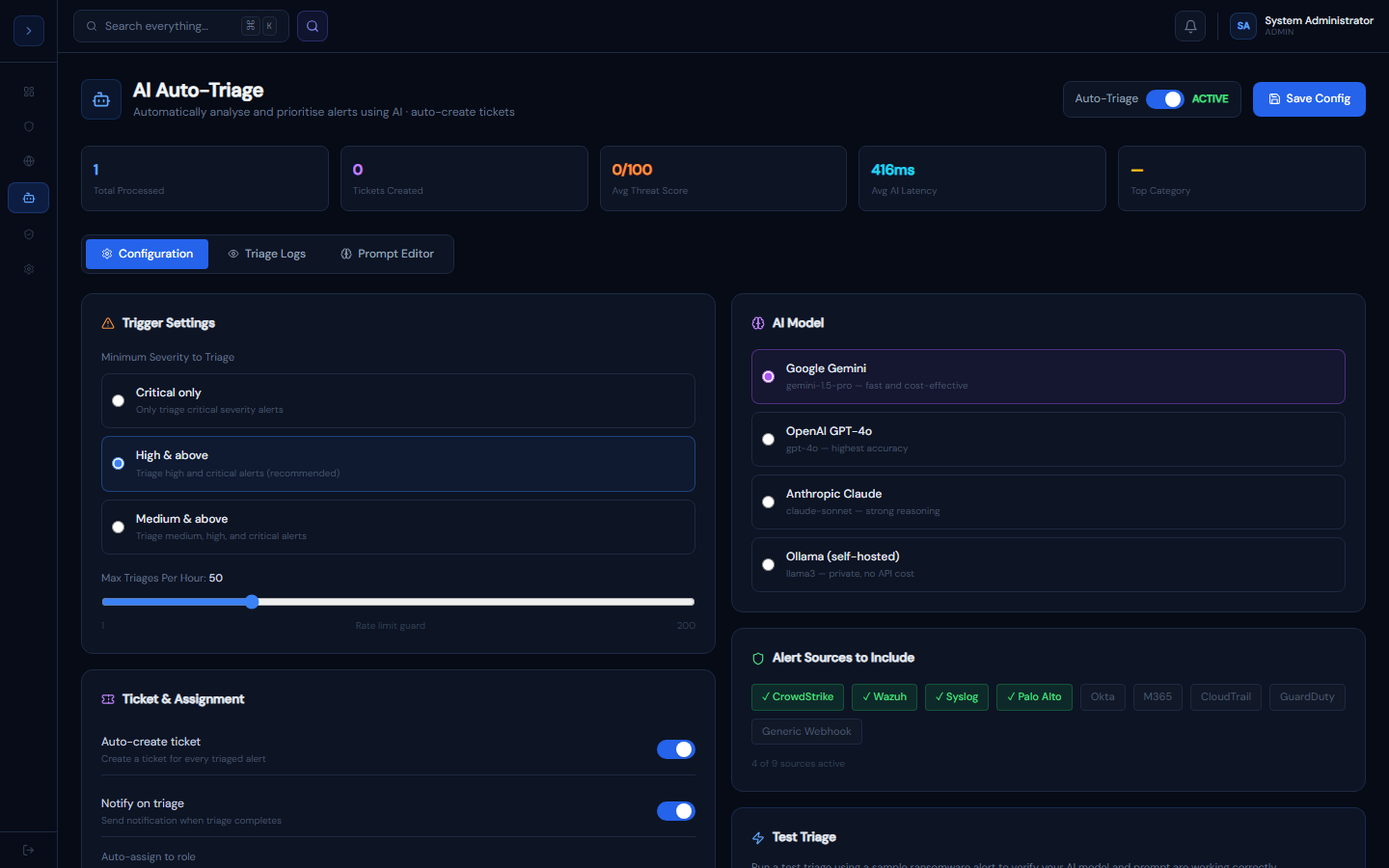
How it works
OverviewHow AI Auto-Triage Works
When a new alert arrives that meets the minimum severity threshold, GuardFox Security Systems:
- Serialises the alert into JSON
- Sends it to your configured AI model with the system prompt
- Parses the JSON response to extract:
threatScore,category,verdict,mitreTechnique,recommendedAction,priority,falsePositiveProbability - Updates the alert with AI analysis
- Optionally creates a ticket and assigns it to the configured analyst role
- Optionally sends a notification
The whole process takes 0.9–1.5 seconds depending on the AI model.
Supported AI models
| Model | Provider | Notes |
|---|---|---|
| Gemini 1.5 Pro | Default — fast, cost-effective | |
| GPT-4o | OpenAI | Highest accuracy |
| Claude Sonnet | Anthropic | Strong reasoning |
| Llama 3 (Ollama) | Self-hosted | No API cost, private |
Setting up AI Auto-Triage
SetupSetting Up AI Auto-Triage
Step 1 — Configure your AI provider
Go to Administration → AI Provider and enter your API key for your chosen model.
Step 2 — Enable Auto-Triage
Go to Automation → AI Auto-Triage → Configuration
- Toggle Auto-Triage to ON
- Select minimum severity (Critical only / High & above / Medium & above)
- Select your AI model
Step 3 — Configure ticket creation
- Toggle Auto-create ticket ON if you want a ticket per triaged alert
- Choose which role the ticket auto-assigns to (SOC_L1, SOC_L2, SOC_L3)
- Toggle Notify on triage for Slack/email notifications
Step 4 — Select sources
Under Alert Sources to Include, enable the connectors you want to triage. Disable noisy sources to save API quota.
Step 5 — Test
Click Run Test Triage — this fires a sample ransomware alert through the full pipeline and shows the raw AI JSON response. Verify the output looks correct before enabling live triage.
Cost estimates
With GPT-4o: approximately $0.002 per alert triaged. With Gemini 1.5 Pro: approximately $0.0005 per alert. Self-hosted Ollama: free.
Customising the AI prompt
How to useCustomising the AI Prompt
Go to Automation → AI Auto-Triage → Prompt Editor.
The prompt uses {{alert_json}} as the placeholder for the serialised alert. The AI must return valid JSON matching this schema:
{
  "threatScore": 0-100,
  "category": "APT|Ransomware|Phishing|...",
  "verdict": "one sentence analyst verdict",
  "mitreTechnique": "T1486 - Data Encrypted for Impact",
  "recommendedAction": "specific action for SOC",
  "priority": "Critical|High|Medium|Low",
  "falsePositiveProbability": 0-100
}Tips for prompt tuning
- Be explicit that the model must return ONLY JSON — no markdown fences, no preamble
- Add your organisation context: "This is a financial services SOC. Alerts involving PCI data should score +20"
- If you see parsing failures in Triage Logs, your model is returning markdown — add "Do not wrap in code blocks" to the prompt
- Click Reset to default to restore the original prompt